If you run a website, you’ve likely been told you need both Google Analytics and Google Tag Manager.
This is where the confusion starts, leading to a common question: can you pick just one, or do they handle the same task?
The short answer is no, you cannot choose just one because they perform entirely separate jobs.
Google Analytics is the report generator that takes raw data and transforms it into readable reports, showing you who visited your site and what they did.
Google Tag Manager, on the other hand, does not create reports itself.
Instead, it holds and manages all the tiny snippets of code, called tags, that send information to tools like Google Analytics.
In a nutshell, without Tag Manager, your Analytics dashboard would be empty.
This guide explains what each tool does on its own and how they work together to provide better tracking data.
Still confused? Keep reading to get a clear idea of how both tools help you track activity on your website.
What is Google Analytics?
Google Analytics (GA4) is a free, powerful analytics and measurement tool that tells you what people are doing on your website or app.
While your website is the vehicle that drives your business online, Google Analytics is the dashboard that displays data on your website traffic and performance.
You can’t effectively manage what you don’t measure, and Google Analytics provides the fundamental measurement for your online presence.
How Does it Work?
Google Analytics collects data by using a small piece of JavaScript code that you place on your website.
When a visitor lands on your site, this code starts a session and collects anonymous data about that user interaction, such as:
- How they found your site
- What pages they visit
- How much time do they spend on each page
- What device and browser are they using
- Their general location
As the user clicks or interacts with key elements on the page, the code can be set up to send signals about these specific “events”, which are any meaningful actions that you want to track.
All this information is sent to Google’s servers. Google then organizes this raw data by session, user, and traffic source into reports you can view in your analytics dashboard.
Key Features
- Real-Time Dashboards: See who is on your site right now and what pages they are viewing.
- Acquisition Reports: Learn where your users are coming from. This report breaks traffic down by channels such as organic search (Google), paid ads, social media, direct URLs, and referrals.
- Engagement Reports: It shows your most-viewed pages, how long people stay on them, and the key events they trigger.
- Monetization Reports: For e-commerce sites, this tracks sales performance, ad revenue, products sold, and average order value.
- Retention Reports: Show how often users return over time, helping you understand whether you’re building a loyal audience.
- Event Tracking: Beyond page views, bounce rate, and session duration, you can track any custom event like downloads, form submission, video plays, link clicks, etc.
- Goal and Conversion Tracking: Measure the percentage of visitors who complete a specific goal and trace which traffic sources and pages lead to those conversions.
- Exploration: GA lets you go beyond standard reports. You can create custom, in-depth analyses, such as funnel visualizations to see where users drop off in a multi-step process, how different user segments relate, and customer journey analytics.
Pros
- Free and Powerful: The standard GA4 provides immense power at no cost, making professional-level analytics accessible to everyone. The depth of data is unmatched by most other free tools. It lets you track nearly every aspect of user behavior.
- Integration Ecosystem: Connect with other Google products, like Google Search Console to see your Google search query performance, and Google Ads to measure which ads drive sales or leads.
- Industry Standard: Its widespread use means there is a huge amount of tutorials, guides, and forum support available.
Cons
- Learning Curve: The interface can be overwhelming for beginners. Understanding what all the metrics mean and how to find what you need takes time.
- Data Sampling: When you run complex queries on large datasets, Google may analyze only a sample of your data rather than 100%, which can lead to slight inaccuracies in advanced reports.
- Privacy and Data Regulations: GA collects data using cookies, which are subject to privacy restrictions such as the GDPR in Europe. You are responsible for ensuring your tracking is compliant with privacy laws, which requires careful configuration and consent management.
What is Google Tag Manager?
Google Tag Manager (GTM) is a free tool from Google that helps you manage tracking codes or tags used on your website.
Without GTM, you would need a developer to insert this code into your website’s backend manually.
GTM lets you manage these code snippets from a single dashboard, instead of manually placing each snippet.
You can add, edit, or remove tracking codes in the GTM interface without constantly editing your site’s source code.
How Does it Work?
A developer installs the Google Tag Manager container code just once on every page of your website.
Once the GTM container is on your website, it watches visitor behavior.
Whenever a user takes action, three things happen:
- Triggers: GTM checks your trigger rules. A trigger could be any event, such as a visitor loading a specific page, clicking a button, submitting a form, or even scrolling to a certain point. The trigger activates if the event matches.
- Tags Fire: When a trigger occurs, GTM automatically fires the associated tag, sending the right data to the connected tools. For example, your Google Analytics tag or Google Ads Conversion tag.
- Variables: When a trigger condition is checked or a tag fires, variables provide the details. Variables can hold values such as a page URL or a button name, so tags fire only when the right conditions are met.
Key Features
- Tag Management System: Manage all tracking codes from one dashboard.
- Debug and Preview mode: Built-in tools let you test tags before they go live, so you can check if everything is working correctly.
- Version Control: Every time you make changes, GTM saves a version. If something breaks, you can roll back to a previous version.
- Integrations: It supports many tools, including Google Analytics, Google Ads, Meta Pixel, and more.
Pros
- Easier Tag Management: You define key events once, and GTM sends that same, accurate data to Google Analytics, your CRM, email software, and other tools. You don’t have to search through code to find or update tags.
- Flexibility: GTM supports a wide range of tag types and triggers, enabling you to track a wide range of visitor actions.
Cons
- Initial Setup Complexity: While using GTM is relatively simple, the correct setup requires developer expertise.
- Not a GA Replacement: GTM doesn’t create reports or magically know what to track. You need to know what you want to track and the correct analytics tools to receive the data.
- Potential for Errors: An incorrectly configured trigger can cause tags to fire on the wrong pages or not fire at all.
When to Use Google Analytics vs Google Tag Manager?
They are not competitors but powerful tools designed to work together.
Use Google Analytics if:
- You want to track website performance, traffic, and overall business health.
- You need to measure marketing campaign performance and see which channels drive the most traffic and conversions.
- You are tracking key business goals or creating audience segments.
Use GTM if:
- You need to manage multiple tracking tags.
- You need to track custom events such as button clicks, form submissions, video plays, and file downloads.
- You want to test your tracking setup before making it live for all users.
- You want to centralize all your third-party tracking scripts in one place for better organization and control.
For best results, you should use both tools together from the start.
If you already have GA hardcoded on your website, you can migrate its management into GTM to gain all the control and flexibility benefits.
Vemetric: A Privacy-focused Google Analytics Alternative
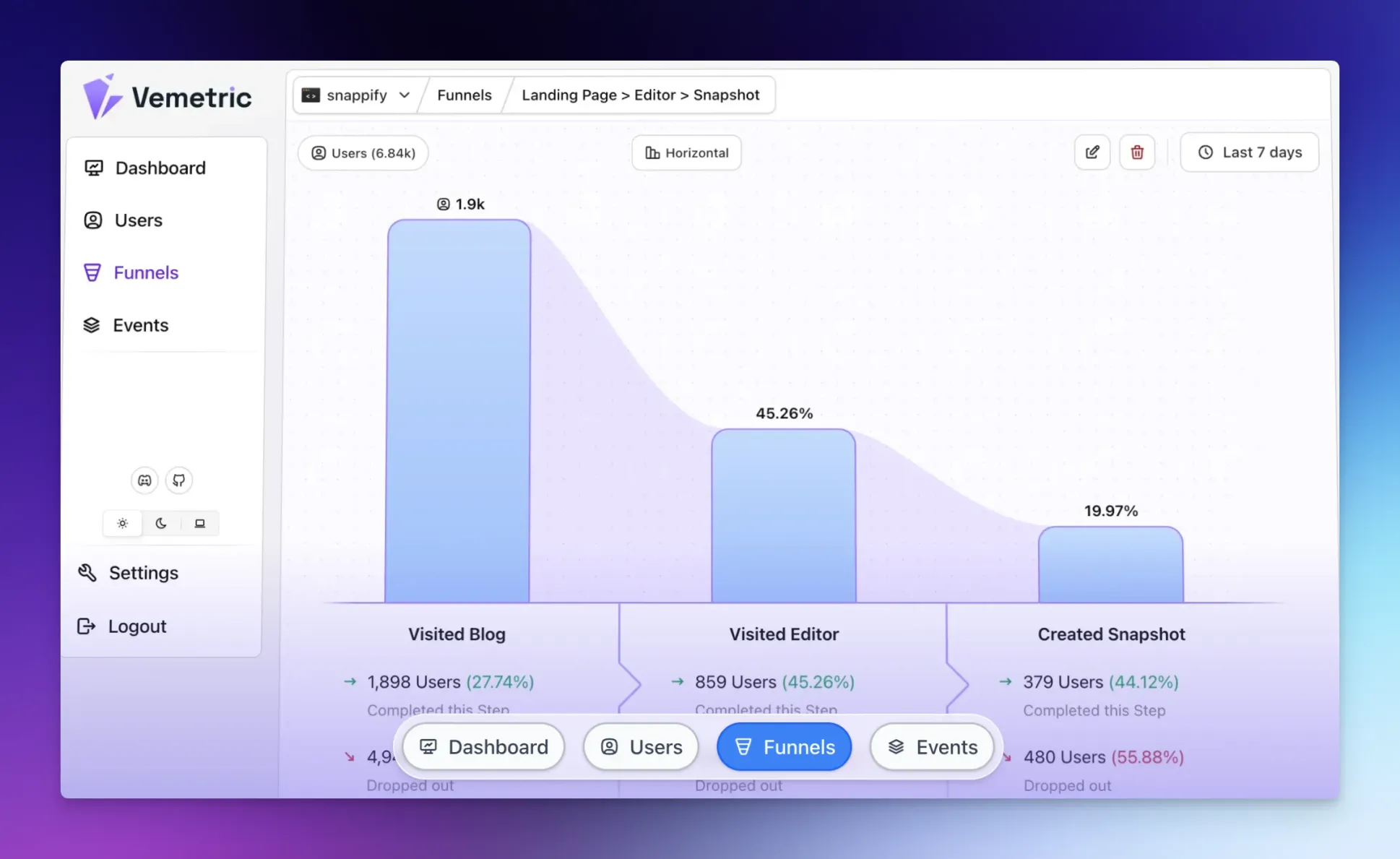
If you want all the benefits of GA while respecting your users privacy, Vemetric is for you.
Vemetric is an open-source analytics platform that helps you understand how people both find and use your website or product.
While it offers core web analytics like Google Analytics, its main advantage is connecting that data to in-depth product usage and feature adoption.
You can see where your users come from and what actions they take after signing in or using your app, all in a single tool.
For product and marketing teams, Vemetric also offers:
- User Journey Tracking: You can merge a user’s anonymous activity with their logged-in actions to see how they engage across sessions and devices.
- Funnel Analysis: Track conversion rates at each stage of the marketing funnel and see where users drop off. You can apply filters to see how conversion rates differ across user segments.
- Privacy Focus: Vemetrc tracks without cookies by default and stays compliant with strict data privacy laws, reducing the need for consent banners.
- Open Source Transparency: You can inspect and contribute to the platform’s code, giving you full visibility into how data is collected and used.
Final Words
Choosing and setting up your analytics is about finding the right balance for your needs.
Google Analytics and Google Tag Manager are an essential combination for most websites: GTM gives you quick control over how data is collected, and GA provides a powerful dashboard to analyze what that data means.
For teams that value deep user journey tracking and privacy from the start, tools like Vemetric offer a united solution.
Whatever approach you choose, the goal is the same: to gain clear insights so you can make decisions based on what your visitors actually do.
FAQs
The most common mistake is installing tracking tags in both the website code and the tag manager. This causes double-counting, where every page view, event, or conversion is recorded twice, completely corrupting your data.
A tag manager can send data to many services, not just Google Analytics. You can use it to deploy tracking for other analytics tools, ad networks, heatmap tools, or custom measurement setups.
Yes, some browser add-ons can block tag manager scripts or analytics tags. In this case, your analytics service may not receive data, even if everything is implemented correctly.